Setting Up the Diagnostics
Logging diagnostic data is switched off by default. To start collecting data for the channel communication diagnostics, you need to set up the logging options in the channel configuration.
The BACnet point manager keeps statistics based on the communication data. In the channel settings, you can enable displaying the statistics and allow other clients in GENESIS to subscribe to the individual statistic points.
You can view the statistics in the Data Browser in Workbench or GraphWorX or in the Data Explorer stand-alone tool. Learn more
To enable and set up logging and statistics of a BACnet channel:
-
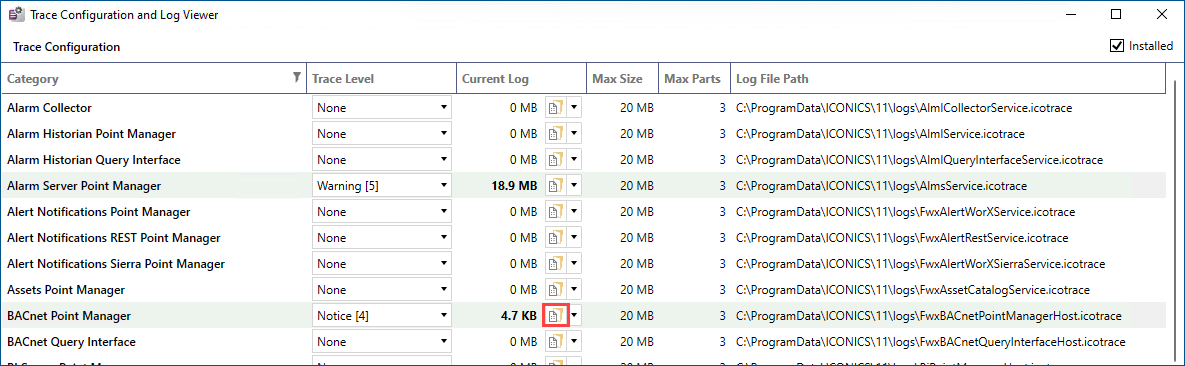
Open Workbench and on the Tools ribbon, select TraceWorX. The Trace Configurations and Log Viewer dialog opens.
Alternatively, open the Windows Start menu and in the GENESIS Tools folder, select TraceWorX Configurator. -
In the Category column, select BACnet Point Manager, and in the Trace Level column, select the desired level of data to be logged.
- None: Logs no data (the default value).
- Fatal: Logs only fatal errors.
- Error: Logs all errors.
- Warning: Logs errors and warnings (such as timeouts).
- Notice: Logs the message types above plus trace messages for expected/common events in the system.
- Info: Logs the message types above plus information messages, such as notifications of startups or received alarms.
- Debug: Logs detailed diagnostic information that can be used for detecting and fixing bugs.
- Debug Verbose (All): Logs all available trace messages.
 The Notice, Debug, and Debug Verbose levels might consume a lot of resources and disk space, so we recommend only allowing them temporarily.
 - When finished, click Save Changes and close the Trace configurator.
- In Workbench in Project Explorer, expand your project > Data Connectivity > BACnet > Channels and double-click the desired channel to open the configuration dialog.
- Go to the Diagnostics tab and in the Logging section, select Enable Channel Diagnostics.
- In the Statistics section, select Display Statistics to allow clients to browse for the statistics points.
- Select Allow Subscribe Statistics to allow clients to obtain real-time values for the subscribed statistic points.
- In Statistics Polling Rate, set the frequency of refreshing the data, and then click Apply.
To view or manage the logged data, open TraceWorX from the File menu in Workbench, select the BACnet Point Manager category, and click the icon in the Current Log column. Learn more
What's Next?